
Screenshot Manager · Windows app
Screenshots · by ThinkFlow
Screenshots, on a string.
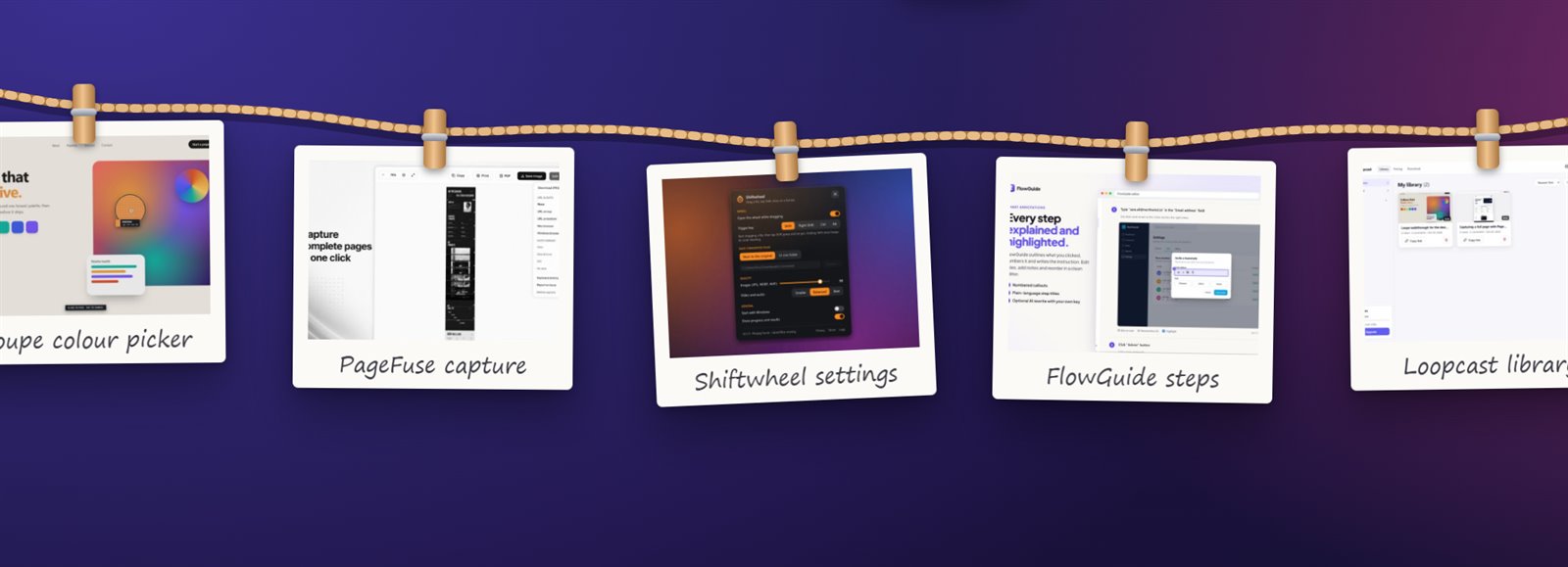
Screenshot Manager clips every capture onto a rope across the top of your screen, so the shot you just took is always one drag away. Annotate it, pin it, or find it later in a searchable gallery.
- ✓ Free
- ✓ Works offline
- ✓ No account
- ✓ Windows 10 and 11
Free · version 1.0.0 · 115 MB · Windows 10 and 11, 64-bit
How it works
Take it. It hangs there.
- 01
Capture
Press Alt+Shift+S or Print Screen and drag over any part of the screen. Snips you copy with Win+Shift+S count too.
- 02
It hangs on the string
The shot flies up and clips onto a string across the top of your screen, next to the last few you took.
- 03
Use it straight away
Drag it into Slack, Word or an email, double-click to annotate it, or pin it on top of the window you're working in.
Features
Built for people who screenshot all day
Your shots, always in reach
Recent screenshots hang on a rope at the top of the screen and slide away when you're not using them. No more digging through a Pictures folder.
Drag straight into any app
Pull a card off the string and drop the real PNG into a chat, a document, an email or File Explorer. Drag along the rope to reorder them.
Annotate in seconds
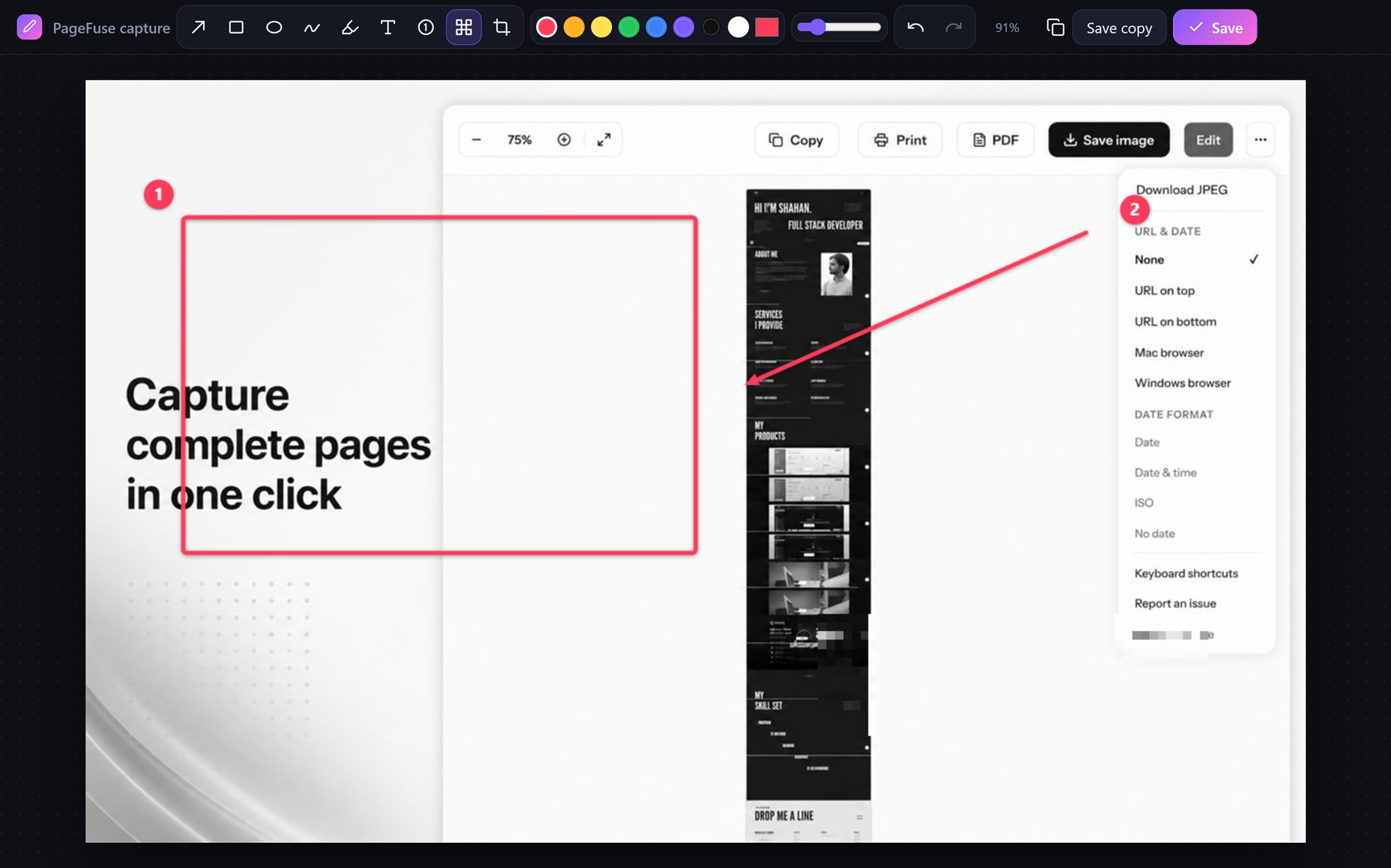
Arrows, boxes, circles, pen, highlighter, text and numbered steps. Blur away anything private and crop, with unlimited undo.
Pin it on top
Float any screenshot over your other windows while you type from it or compare. Scroll to zoom, Ctrl+scroll to fade it.
A gallery that remembers
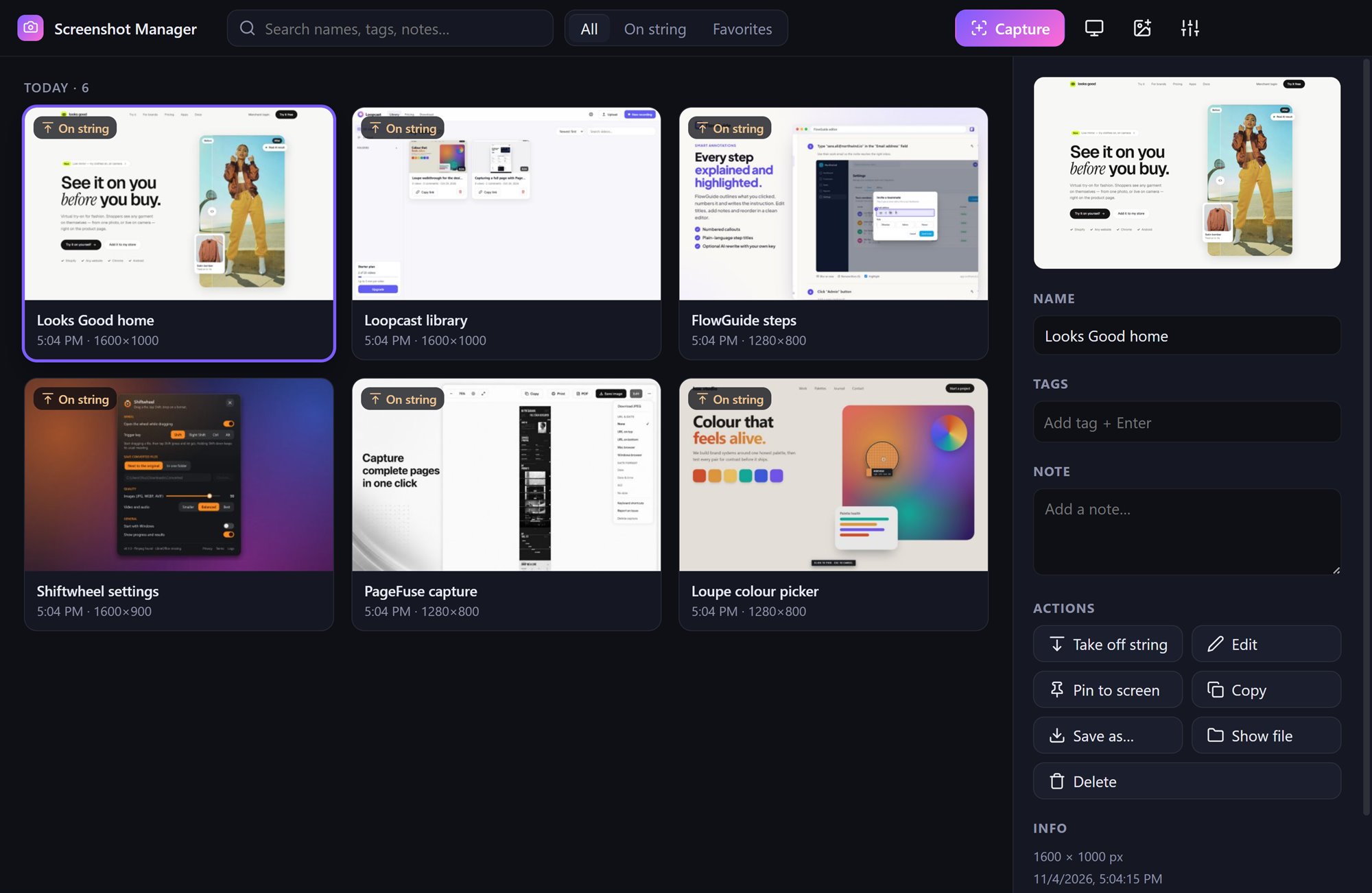
Every shot is kept with its date, name, tags and notes. Search them, mark favourites, stitch several into one image or export them all.
Works with the clipboard
Images you copy anywhere are hung on the string for you, and a magnifier shows pixel positions and colours while you select.
Screenshots
Screenshot Manager, up close

Shortcuts
Everything is one key away
| Press | To |
|---|---|
| Alt+Shift+S or Print Screen | Capture part of the screen |
| Alt+Shift+F | Capture the whole screen |
| Alt+Shift+H | Show or hide the string |
| Alt+Shift+G | Open the gallery |
| P · E · Ctrl+C · Ctrl+S | While selecting: pin, edit, copy or save |
Every shortcut can be changed in Settings.
Download
Free for Windows. Set up in a minute.
- 01
Download the installer
Screenshot-Manager-Setup.exe (115 MB). Everything it needs is inside.
- 02
Run it
If Windows shows “Windows protected your PC”, click More info, then Run anyway. Choose where to install it, and you're done.
- 03
Take your first shot
The string appears at the top of your screen and the app's icon sits next to the clock. Press Alt+Shift+S to try it.
Version 1.0.0 · 115 MB · Windows 10 (1809 or later) and 11, 64-bit
Private by design
Your screenshots never leave your PC
Screenshots often show messages, documents and passwords. Screenshot Manager keeps them as files on your own computer, with no account, no cloud sync and no internet connection.
Read the privacy policy →- Account
- Not needed
- Uploads
- None
- Internet connection
- Not needed
- Analytics and tracking
- None
- Where shots are saved
- Pictures\Screenshot Manager
Guides
Get more out of Screenshot Manager
Questions
Is Screenshot Manager free?+
Yes. The download on this page is free, with every feature and no watermark.
Are my screenshots uploaded anywhere?+
No. They're saved as ordinary PNG files in Pictures\Screenshot Manager on your PC. The app has no account, no cloud, no analytics and doesn't connect to the internet.
Does the string get in the way?+
It only catches the mouse on the cards and buttons; everywhere else clicks go straight through to the window below. It also slides away after a few seconds, leaving a small tab at the top of the screen.
Can I keep using Win+Shift+S?+
Yes. Anything you copy as an image, including Windows snips, is hung on the string automatically. You can turn this off in Settings.
Can I change the shortcuts?+
Yes. Open Settings from the gallery or the tray icon and press the keys you want for each action. You can also choose the save folder, how long the string stays out and how many shots it holds.
Where do deleted screenshots go?+
To the Windows Recycle Bin, so you can restore them if you change your mind.
Why does Windows warn me when I run the installer?+
Windows SmartScreen warns about new apps it hasn't seen many people download yet, and about installers without a paid code-signing certificate. Click More info, then Run anyway.
Which Windows versions are supported?+
Windows 10 (version 1809 or later) and Windows 11, on 64-bit PCs.
Read the Screenshot Manager Privacy Policy.